 Clip & Chat
Ever ask ChatGPT to summarize an article, think “that’s interesting,” and move on? What if you could turn something you read into an idea worth trying at work?
Give ChatGPT your role and a specific question along with the article. These five prompts help you move from a quick summary to understanding, critical thinking, and a small next step.
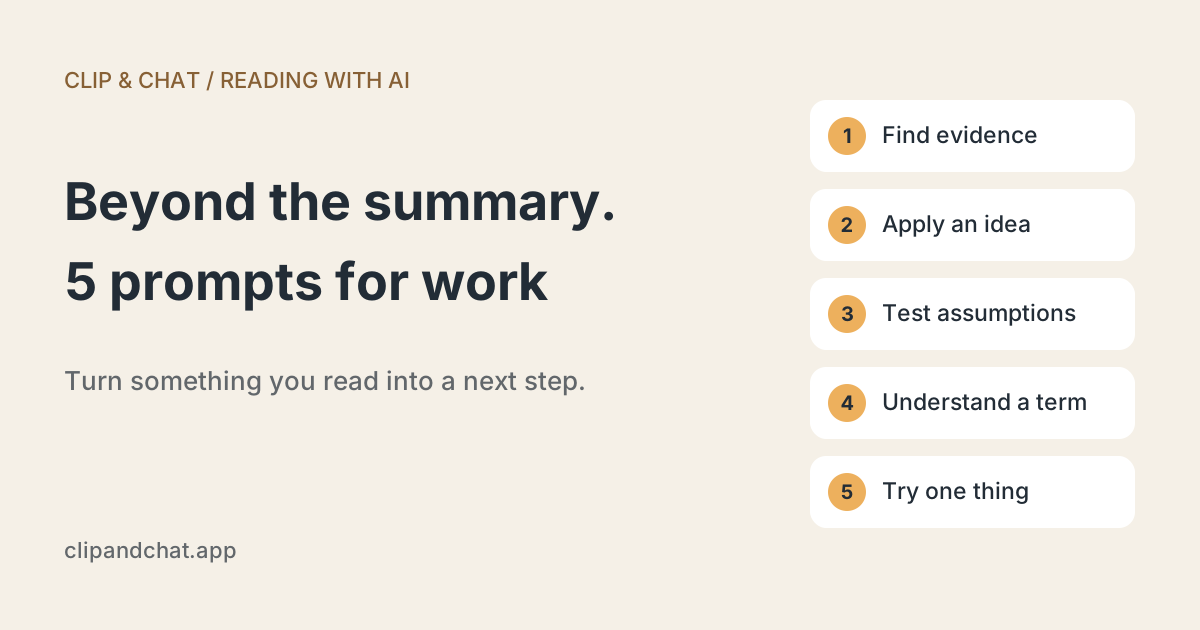
1. Separate the main points from the evidence
A short summary can tell you what an article argues without explaining why. Ask for the reasoning as well as the conclusion.
Summarize this article in three main points. For each point, briefly explain the supporting evidence in the text. Distinguish the author’s opinions from reported facts. Do not add information that is not in the article.
If one point catches your attention, follow up with “Which section supports that?” Check numbers and quotations against the original before using them.
2. Connect the article to your work
Another company’s success story may not translate directly to your team. Add a little context to make the question relevant to your situation.
I work in [role or area of responsibility]. My current challenge is [problem]. Suggest three ways I could apply the ideas in this article. For each, explain the connection to the article, the conditions it would require, and a small way to test it. Keep what the article says separate from your own suggestions.
For example: “I work in sales operations, and our deal reviews rarely lead to better proposals.” You can describe the problem without including company or customer names.
3. Explore when the idea might not work
A compelling argument is worth examining from another angle. Instead of just asking for a counterargument, ask about the assumptions behind it.
What assumptions does this article’s argument depend on? Describe situations where those assumptions might not hold, and what I should check before acting on the idea. If the article does not contain counterevidence, label these as hypotheses to investigate, not established facts.
You can add a condition that matters to you: “Would this work for a small team?” or “What if implementation costs were much higher?”
4. Get an explanation at the right level
When an article is full of unfamiliar terms, another summary may not help. Point to the term or paragraph where you got stuck.
I don’t understand [term or paragraph] in this article. I’m familiar with [your field]. Explain it using an example I can relate to. Then explain where the analogy breaks down and why this concept matters in the article.
“I know marketing, but I’m new to machine learning” gives a useful starting point without requiring a long introduction.
5. Choose one thing to try this week
You don’t need to act on every idea. Set a time limit and ask for one manageable experiment.
I want to try one idea from this article at work this week. I have 30 minutes. My situation is [context]. Suggest one small action, what I need to prepare, the steps to take, and what to review afterward. If you need more information, ask me before making the suggestion.
Afterward, follow up with what happened. The article becomes a starting point for reflection, rather than another item you read and forgot.
Send the article you’re reading on your iPhone
Once you have a question in mind, selecting every paragraph of a long article can feel like unnecessary work.
Clip & Chat sends article text from Safari’s Share menu to ChatGPT. It also works with paid and members-only articles you can read while signed in to Safari.
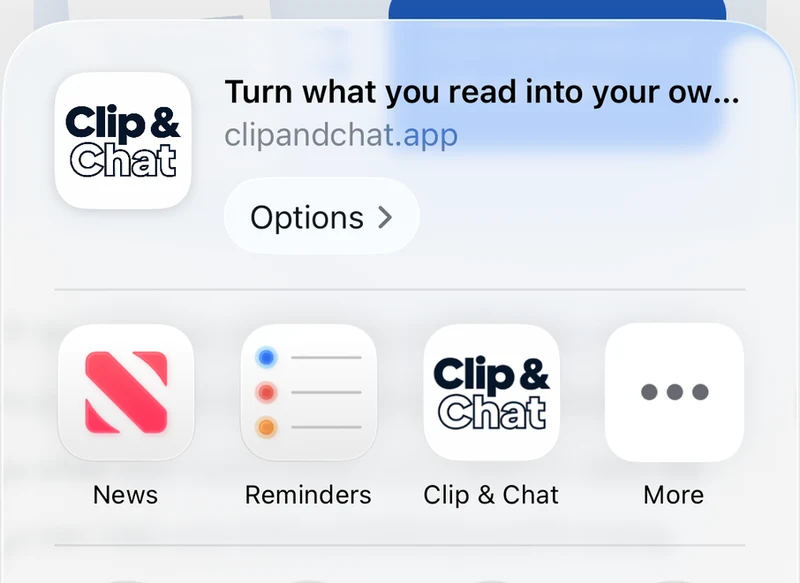
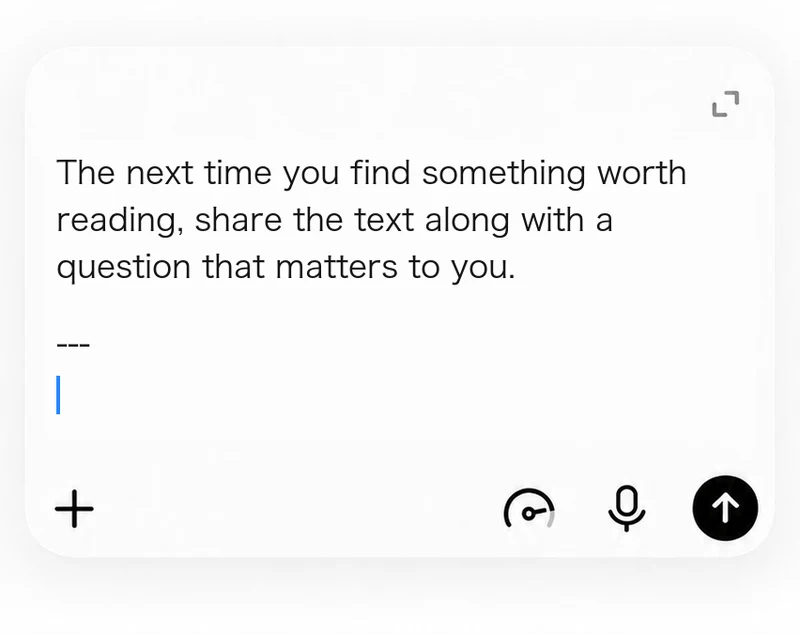
If the article preview appears, use its button to pass the text to ChatGPT. Then add your question at the end of the article in the message field.
For the full walkthrough, see how to send a web article to ChatGPT on iPhone. If sharing a link doesn’t work, see what to do when ChatGPT can’t read an article URL.
Save a reusable question in Suffix
If you like to read every article through the same lens, save your prompt in “Text after the article (Suffix)” in Clip & Chat’s settings. It will be added after the article each time you share.
Here’s a simple starting point:
Summarize this article in three main points, then suggest one question to help me think about applying it at work. Keep the article’s content separate from your own suggestions.
You can add today’s context or a more specific question after ChatGPT opens.
Your first five shares are free. Try one of these questions with the next article that catches your attention.