 Clip & Chat
Ever read an article in Safari and wanted ChatGPT to summarize it—or asked yourself, “How could I apply this to my work?”
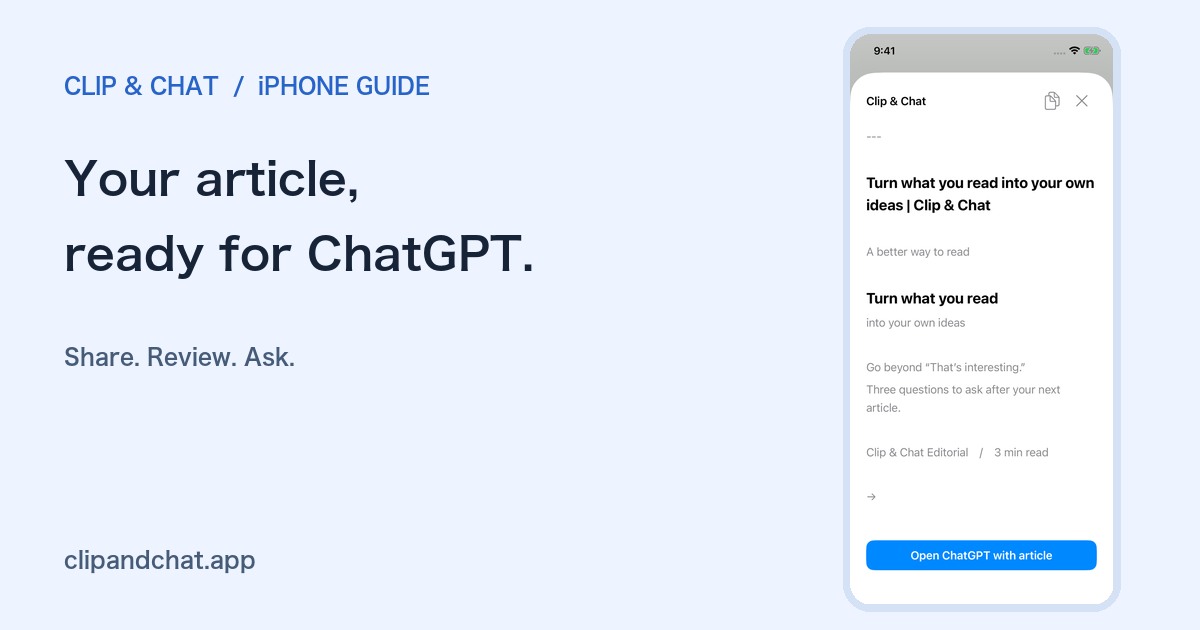
For occasional use, selecting and copying the text yourself may be all you need. If you do this often, Clip & Chat lets you pass the article text from Safari’s share menu to ChatGPT. Here is the process, with screenshots.
What you need
- The ChatGPT app and Clip & Chat installed on your iPhone
- An article you can read in Safari
You can try Clip & Chat with five free article extractions.

1. Open the article in Safari and choose Share
Open the article you want to discuss with ChatGPT in Safari.
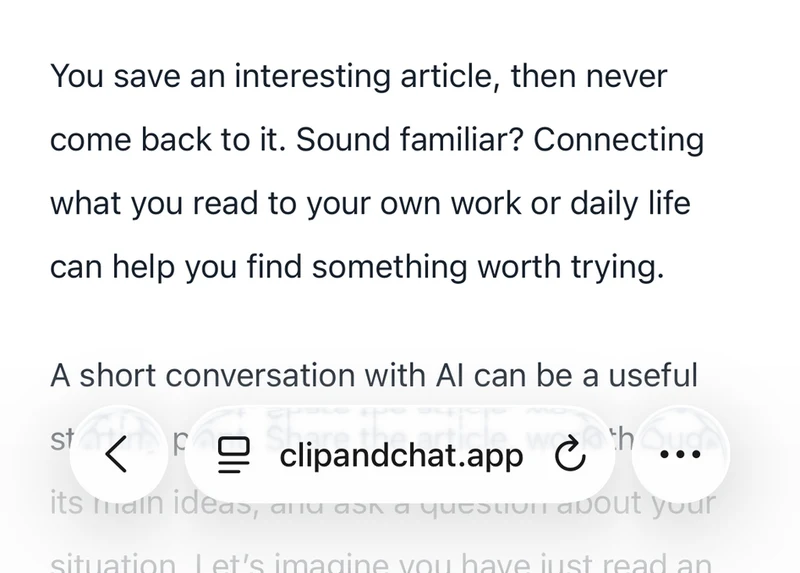
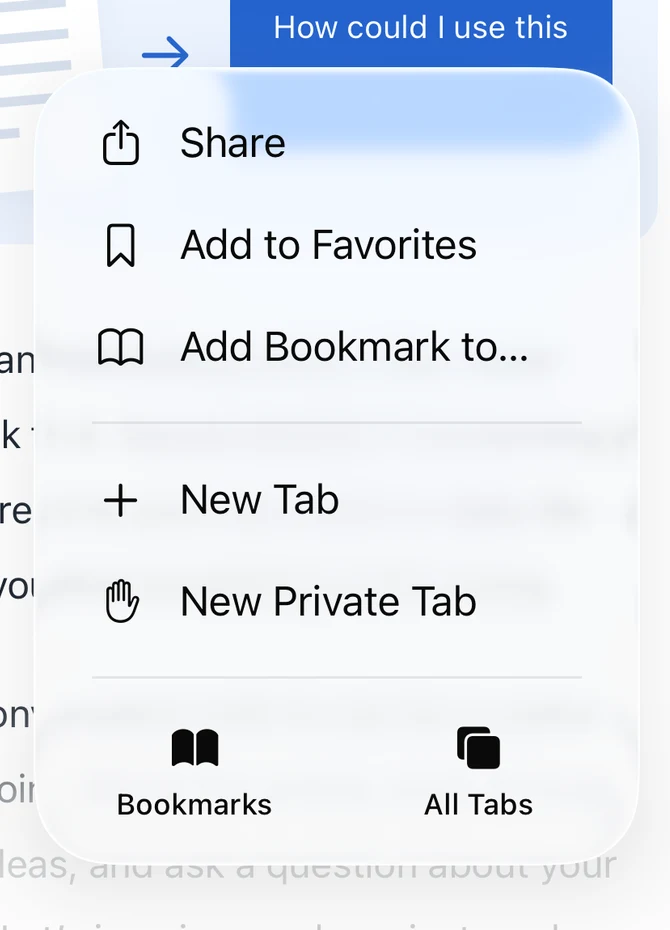
In the layout shown here, tap the three dots in the bottom-right corner, then Share. Depending on your Safari layout, a share icon may be visible directly in the toolbar.
2. Choose Clip & Chat from the share sheet
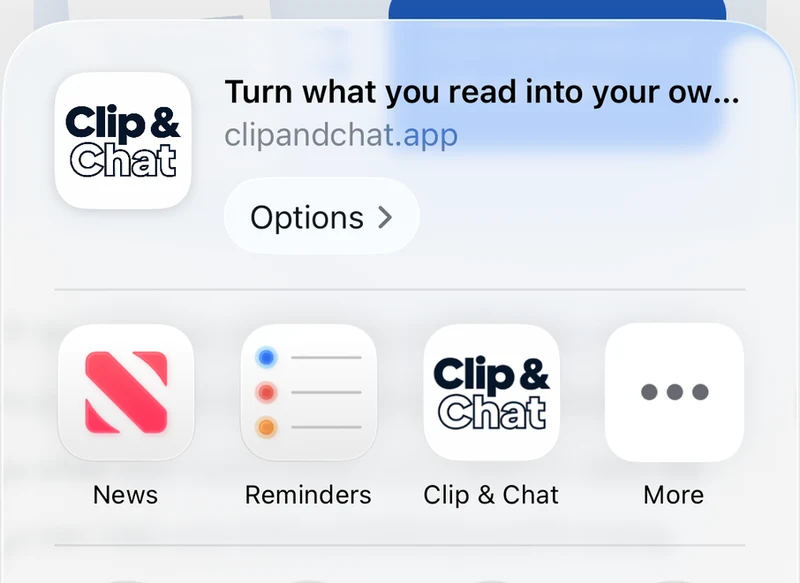
Find Clip & Chat in the row of app icons and tap it.
If you do not see it, scroll along that row and open More. Adding Clip & Chat to your favorites makes it easier to find next time.
3. Review the text and open ChatGPT
If the article review screen appears, check the text, then tap the blue button at the bottom to pass the text to ChatGPT. If iOS asks you to confirm opening the app, confirm to continue.
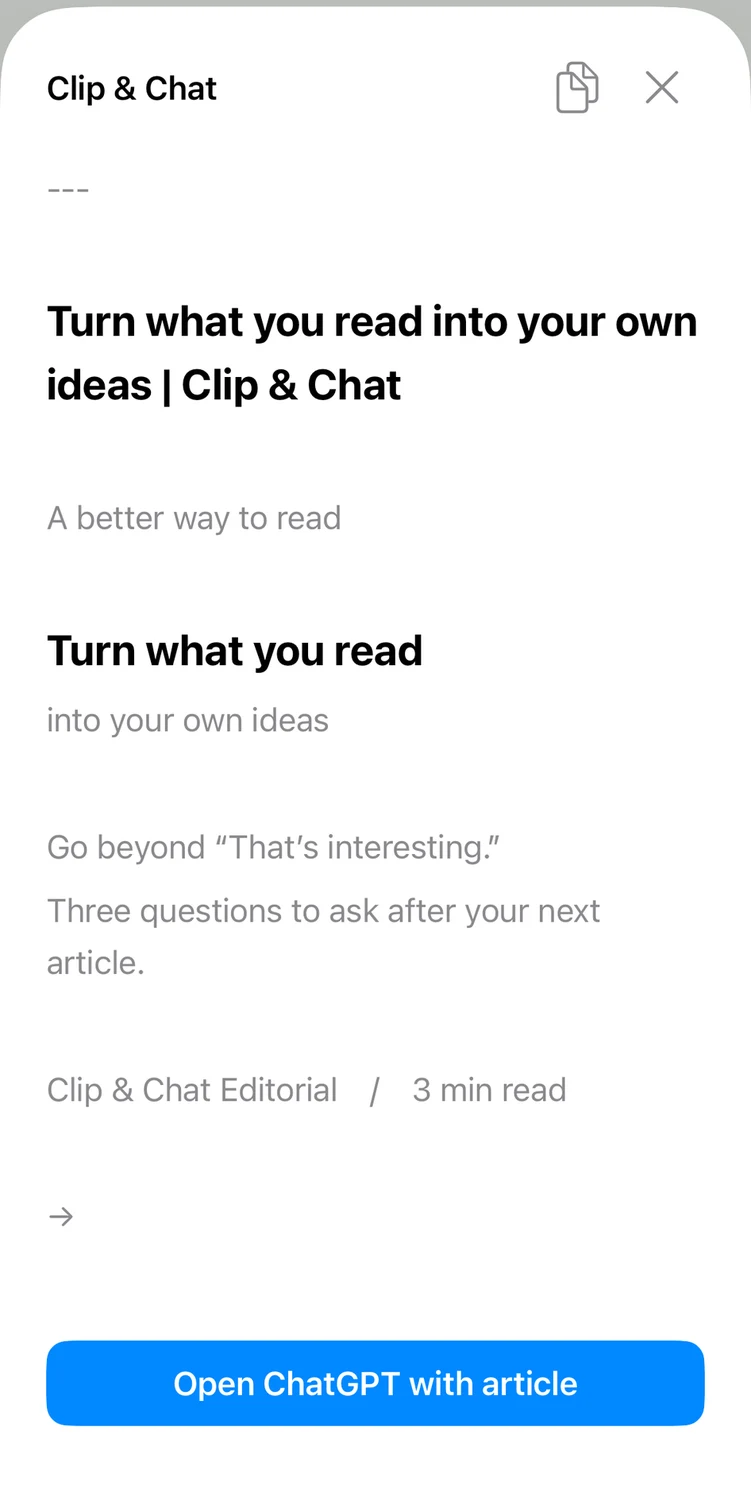
Clip & Chat includes the title and source URL, and formats headings and lists as Markdown.
4. Add a question and send the message
The article text is now in ChatGPT’s message box. Add a question at the end. The message has not been sent automatically: review it, then press Send yourself.
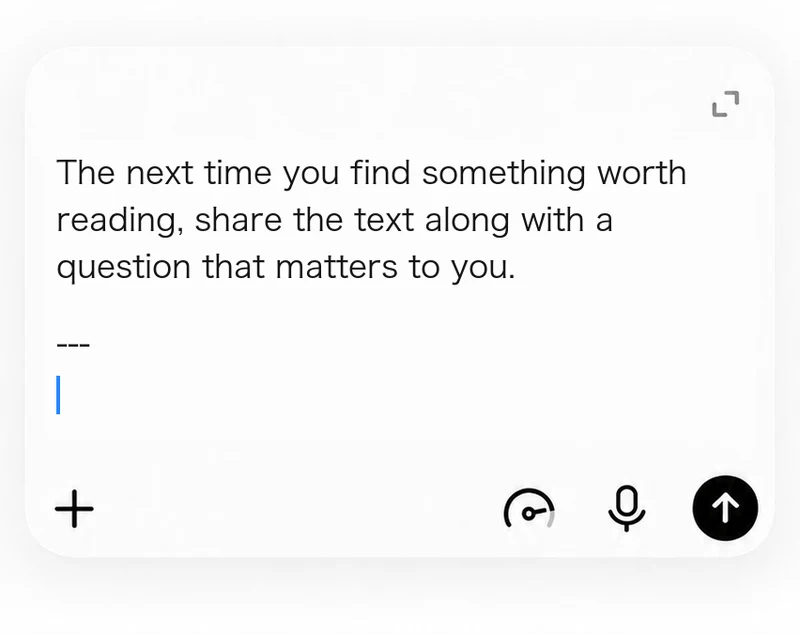
Start with something simple:
Summarize this article in three points. Separate the facts reported in the article from the author’s opinions.
Or add a little context about yourself:
I want to improve meetings in a small team. Suggest two things I could try based on this article. Distinguish the article’s ideas from your own suggestions.
If you often use the same instructions, save them in Clip & Chat’s Prefix or Suffix settings. They will be added before or after the article text.
How this differs from sharing a link or copying text
Sharing a URL is convenient, but it depends on whether the AI can access the page. Sending a link does not transfer your Safari login session along with it.
Copying manually gives you control over a specific passage. Select the text in Safari, copy it, then paste it into ChatGPT. This is a good option for short excerpts or occasional use.
Clip & Chat extracts text from the page you are viewing and passes it to ChatGPT so you can add a question. It reduces the repeated work of selecting long passages and pasting them between apps.
What about paid or members-only articles?
You can also send article text you can read in Safari from paid and members-only sites. There is no need to drag a selection from the first line to the last. Take an article you already read and use it for a summary or a conversation.
Check the website’s terms and only share content you are permitted to send to an AI service. Review the text for confidential information or unnecessary personal details before sending it.
If something does not work
- Clip & Chat is missing: Open the article in Safari and check More in the share sheet’s app row.
- The text is incomplete: Make sure the article has loaded in Safari. Text spread over multiple pages or embedded in images may not be extracted. You can also copy the passage you need manually.
- ChatGPT does not open: Check that the ChatGPT app is installed and opens on its own. As a fallback, use the copy icon on Clip & Chat’s review screen, then paste the text yourself.
Try it with an article you are reading today.
Related: AI can be more than an answer. It can help you remember.
Related guide: ChatGPT can’t read an article link? Send the text instead