 Clip & Chat
Ever saved an article, opened it later, and wondered why you kept it? What if you could keep the idea it sparked—and the conversation you had about it—alongside the source?
Use ChatGPT Space to build a reading notebook that holds the article’s key points, your own thoughts, and the questions you still have. Here is a workflow that starts with sending an article through Clip & Chat and ends with notes you can return to.
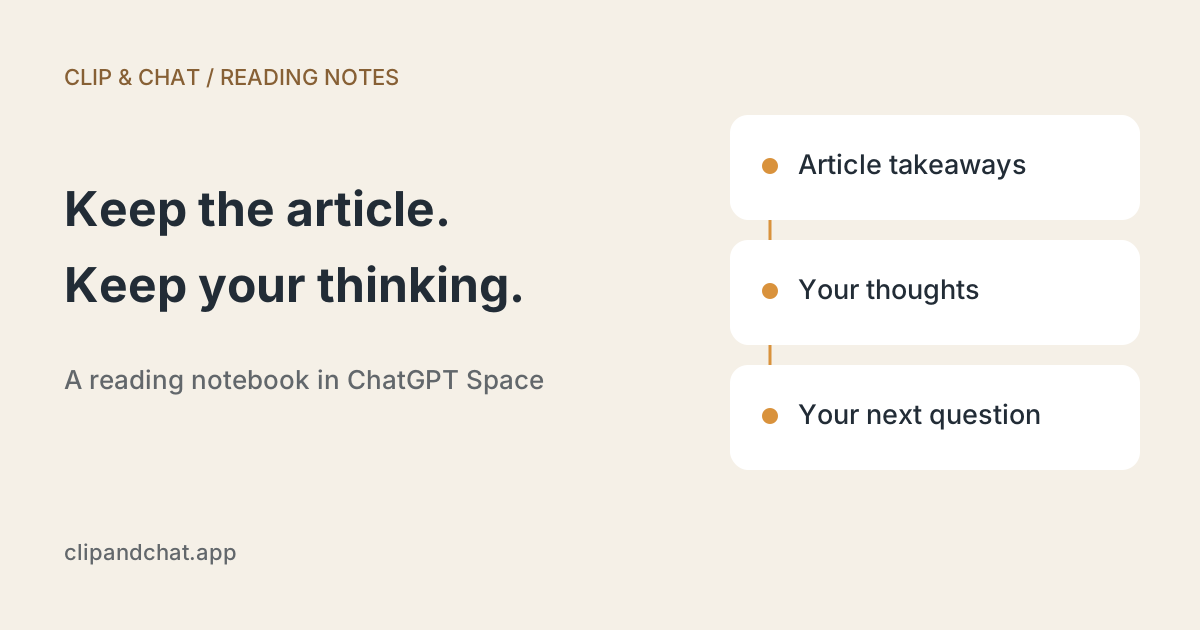
Keep your thoughts alongside what you read
A page in ChatGPT Space is an editable document for notes and research. You can add text, links, and files, or ask ChatGPT to create a page from a conversation. Related pages can be grouped in a space around a topic. Official OpenAI guide
For a space called “AI at work,” you might collect:
- Reading notes: a company’s AI experiment and what caught your attention.
- Personal notes: something you want to try in your own workflow.
- Reflections: what happened when you tried it, and what to change next.
This gives your next article some context: a record of what you thought and tried before.
You need a ChatGPT account with Space enabled. If you do not see it yet, you can still draft your reading notes in an ordinary chat.
1. Send the article with Clip & Chat
Open an article in Safari on your iPhone, tap Share, and choose Clip & Chat. If the text preview appears, use its button to send the text and open ChatGPT.
You do not need to select a long article by hand. This also works with subscription and members-only articles you can read while signed in to Safari.
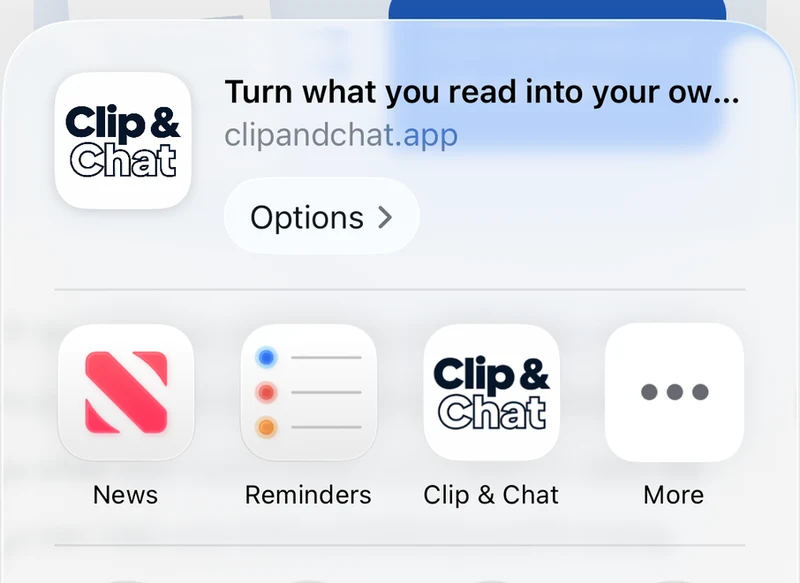
Clip & Chat hands the text to a ChatGPT chat. Creating a page in Space comes afterward. For the initial setup, see how to send a web article from your iPhone.
2. Add why it caught your attention
Before sending, add a sentence or two after the article text:
This article made me think we could reduce the work that follows our team meetings. But I wonder whether checking the AI’s output would take just as much time. Separate what is useful in the article from what I should check before trying it.
Your reaction does not need to be polished. “I’m not convinced by this claim” or “This reminds me of something we tried that failed” is enough.
When you return to the note, that small addition helps you remember what mattered to you at the time.
3. Turn the conversation into a reading-note page
Once the discussion is worth keeping, ask ChatGPT to create a page from it. This is a supported way to create pages in Space. Official page guide
Try this request:
Create a reading-note page from this conversation. Use these sections: source title and URL, article takeaways, my thoughts, open questions, and what to try next. Keep the article’s claims, my comments, and your suggestions separate. Do not invent reactions I did not express. Mark unknown source information as unknown.
Review the result: does it represent the article accurately, and distinguish your thoughts from AI suggestions? Keep the source URL so you can revisit the original.
A title such as “How could we reduce post-meeting work?” may be easier to find later than the original article headline. It captures the question you were exploring.
4. Group your notes and add what happened next
To create a topic space, open All, choose New, then Space. Start with one current interest: “AI at work,” “Writing better,” or “Our next trip.” Space setup guide
Organize your reading-note page in that space, then add observations as they occur. You do not need another article to make the notebook useful.
After a meeting, for example, you might add:
What I tried: turning meeting notes into next steps for each person.
What I noticed: we still had to clarify tasks with no obvious owner.
What I’ll change: reserve time at the end of the meeting to confirm owners and deadlines.
This is an example, but it shows how a reading note can grow into a record of your own experience.
5. Compare your next article with an earlier idea
When you find a related article, bring an earlier note into the discussion. Pages support references to existing pages and chats. Working with references
Select the note you want to compare, then ask:
Compare this new article with the reading note I referenced. Identify shared ideas, disagreements, and differences in their assumptions. Suggest which of my earlier views might be worth revisiting. Do not guess about material you cannot access.
Choose the notes that matter to this comparison, rather than assuming every saved item is automatically being read. Recognizing how your thinking has changed is a useful outcome in itself.
Start with the next article you read
You do not need an elaborate knowledge library. Send one article, add what caught your attention, and make a page if the conversation is worth keeping. Repeat when another piece connects with it.
If you need a starting question, try one of these five prompts for turning an article into ideas for work.
Clip & Chat includes five free shares. Try it with an article you were going to read anyway—and keep the thought it sparks.